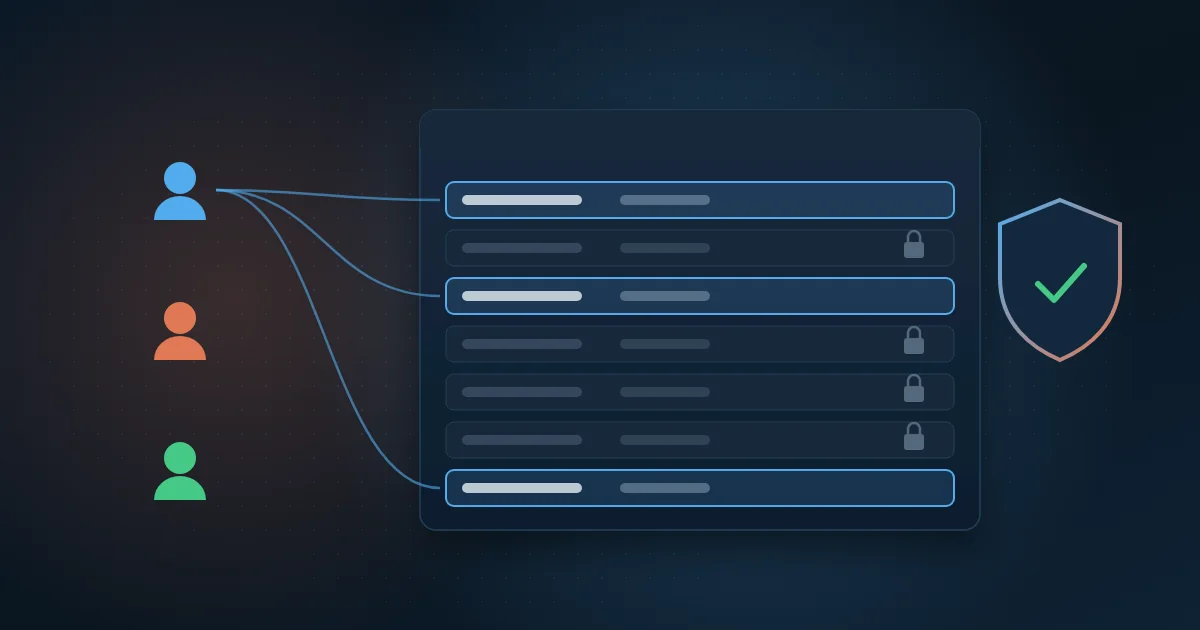
Power BI workspaces: how to organize access, environments and company reports
Power BI workspace: what it is, why not to use My workspace, the access roles, how to separate environments and a checklist to organize your company.

In short
- A workspace is the shared folder in the Power BI Service that holds a team's or project's reports, semantic models, dataflows and refresh schedule.
- A report used by other areas cannot live in anyone's My workspace: it needs a shared workspace with at least two administrators.
- Grant access through Microsoft Entra ID groups with the right role and use row-level security to control which data each person sees.
- People who only consume get a Power BI app, and critical reports get separate development and production workspaces.
Short answer: a workspace in Power BI is the shared folder in the Power BI Service where a team's reports, semantic models and dataflows live. To keep the company from losing reports or exposing data, use one workspace per area or project, grant access through groups with the right roles and deliver reports to users through an app, never through My workspace.
In practice, many companies end up somewhere else. Each analyst publishes from their own computer, the important reports live in someone's My workspace, access was granted person by person and nobody can say who sees what. Everything works until the day that person leaves the company or a director receives a number they should not see.
In this guide you will see what a workspace is, why My workspace is not suitable for company reports, the four access roles, how to organize workspaces by area and environment, how to deliver reports with apps and a checklist to tidy up what already exists.
What is a workspace in Power BI?
Power BI has two parts. Power BI Desktop is the program where the analyst builds the report on the computer. The Power BI Service is the website, in Microsoft's cloud, where the report is published, refreshed and shared. Inside the Service, everything is organized in workspaces, which work like team folders.
A workspace holds reports, dashboards, semantic models (the data and calculations behind the reports) and dataflows. It is also where the refresh schedule and the connection to the gateway live, the program that takes data from internal systems, such as an ERP installed on the company's server, up to the cloud.
Why is My workspace not suitable for company reports?
Every user has a My workspace, a personal space for tests and drafts. The problem starts when a report used by other areas stays there. The most common risks:
- The report depends on one person: if they leave the company or their account is disabled, the content becomes hard to recover.
- Nobody else can edit it, fix a formula or follow up on a refresh failure.
- Sharing becomes a list of individual people, with no control over who got in and why.
- There is no separation between the version being tested and the version the board uses.
The rule is simple: My workspace is for drafts. Everything another person uses to make decisions goes into a shared workspace, with more than one administrator.
What are the access roles in a workspace?
Each workspace has four roles. Choosing the right role prevents someone from deleting a report by mistake or seeing data they should not.
- Admin: controls everything, including who has access. Give it to two people from IT or the data team.
- Member: publishes, edits and shares content. Good for whoever owns the area's reports.
- Contributor: creates and edits content but does not manage access. Good for analysts and external consultants.
- Viewer: can only view. For consumers, though, an app is usually better than direct access to the workspace.
Grant access to Microsoft Entra ID groups, the company's user directory, and not to people one by one. When someone joins or leaves the area, you only change the group. Also remember that the role controls what a person does in the workspace, but not which rows of data they see. That is what row-level security is for, explained in the guide to RLS in Power BI.
How should you organize the company's workspaces?
There is no single model, but three decisions solve most cases.
By area or by project
Create one workspace per area, such as Finance, Sales and Operations, or per project when the subject crosses areas. Avoid one giant workspace with everything inside: permissions become a mess and nobody finds anything. Use a naming pattern, such as area, subject and environment.
Separate development and production
Critical reports deserve two or three workspaces: a development one, where the analyst tests, and a production one, which the board uses. Power BI deployment pipelines move content from one stage to the next, but they depend on the company's license type. With the Power BI project format, changes are also recorded in a version history, as the guide to PBIP in Power BI shows.
One model, many reports
When each report carries its own copy of the data, the same metric shows up with different numbers. The way out is to publish one official semantic model in a data workspace and connect the areas' reports to it. That way the calculation rule lives in one place.
Workspace or app: how should you deliver reports?
The workspace is the builders' workshop. People who only consume should get a Power BI app: a package published from the workspace, with an organized menu and different audiences, where each group sees only the pages that concern it. The analyst can work in the workspace without users seeing a half-finished version, because the app only changes when it is published again.
Remember that viewing content in the Power BI Service requires a license, which varies with the company's plan. When reports must reach customers, suppliers or franchisees outside the company, the path is usually different: a portal with Power BI embedded, as the guide to Power BI Embedded shows.
How do you tidy up the workspaces you already have?
If your company has used Power BI for a while, start with an inventory. A step-by-step that works:
- List the workspaces, the reports in each one, who uses them and when they were last opened.
- Find important reports sitting in someone's My workspace and move them to shared workspaces.
- Set two admins per workspace and replace individual access with groups.
- Separate development and production for the reports the board uses.
- Create apps for consumers and remove their direct access to the workspaces.
- Check each model's refresh: schedule, gateway, credentials and an owner for failures.
- Delete, together with each area's owner, what nobody has opened in months.
The sign it worked is simple: every important report has an owner, survives one person leaving and shows the same number to everyone.
What mistakes should you avoid when organizing workspaces?
Some mistakes show up in almost every company that grew in Power BI without a plan. It is worth checking whether any of them happen in yours:
- Giving everyone the admin role to avoid access requests.
- Using an analyst's personal login in the refresh and gateway credentials.
- Sharing reports one by one, by link, instead of publishing an app.
- Leaving external consultants with access after the project ends.
- Copying the same data model into several workspaces, each with a different calculation rule.
- Having nobody responsible for checking overnight refresh failures.
If you hire someone from outside to build reports, agree from the start that everything stays in the company's workspaces, with corporate accounts, as the guide on Power BI freelancers explains. That way the delivery keeps working the day after the contract ends, and the vendor's access can be removed without breaking anything.
How Wolkee helps
Wolkee provides end-to-end Power BI consulting: modeling, reports, row-level security, portals with embedded Power BI and organizing the Power BI Service. We review the workspaces your company already has, propose the structure by area and environment and leave access, apps and refreshes with an owner and documentation. Wolkee has 9 years in the market and more than 500 deliveries.
If your company's Power BI grew without organization, book a free 30-minute assessment. We reply within 1 business day and, when it makes sense, show a working prototype before the contract.
Frequently asked questions
What is the difference between My workspace and a shared workspace?
My workspace is personal: only its owner works in it, and it is meant for tests and drafts. A shared workspace belongs to the team, with access roles, several administrators and app publishing. Everything other people use to make decisions should live in a shared workspace, so it does not depend on a single user.
How many workspaces should a company have?
There is no right number. A good starting point is one workspace per area or project, plus a data workspace with the official models, and a development and production pair for critical reports. More important than the count is having a naming pattern, a defined owner and group-based access in each one.
What happens to reports when an employee leaves the company?
If they are in a shared workspace with other administrators, nothing changes: the team keeps editing and refreshing. If they are in that person's My workspace, recovery depends on the company's Power BI administrator and can be laborious. Also review the refresh and gateway credentials, which sometimes use the personal account of whoever left.
Does a Power BI workspace require a Pro license?
To publish and collaborate in shared workspaces, generally yes: each person who creates or edits content needs a Pro license or higher. People who only view also need a license, unless the workspace is on a company capacity that allows viewing. Check the current rules with Microsoft before defining your license model.

Partner and Sales Director at Wolkee
He started on the technical side, moved into consultative pre-sales and today follows Wolkee's BI, data and automation projects from diagnosis to delivery.
LinkedIn